Showing posts with label Installation. Show all posts

June 20, 2015

// // 1 comment

Update T-Mobile Galaxy S6 Edge to Android 5.1.1 Lollipop Official Firmware

Samsung has never been the fastest when it comes to updating to newer versions of Android but thankfully this situation has changed a bit with Lollipop, as the Korean giant has done a pretty good job of pushing the update out to many of its flagship devices. Of course, Android isn’t standing still and due to a number of bugs and performance issues, it recently made the jump from Android 5.0.x to 5.1. How long before Samsung follows suit? Sooner than you’d think.

Up until now, Android 5.1 had been exclusive to Nexus, Android One, and GPe devices, but several reports are coming in that suggest that T-Mobile is now rolling out an update to the Samsung Galaxy S6 Edge that brings its software up to version 5.1.1. Yes, you read that right. Samsung isn’t just jumping up to 5.1, they are getting the very latest version of it (5.1.1) — an update that so far hasn’t even hit any Nexus devices, at least outside of the Nexus Player.

If you want to get this latest firmware on your Galaxy S6 SM-G925T, then we have a complete guide on how to install UVU2COF6 Android 5.1.1 Lollipop on Galaxy S6 G925T device manually with Odin.

Please keep in mind that this is an Official Firmware, not a modified custom ROM. You can easily install UVU2COF6 Android 5.1.1 Lollipop on Galaxy S6 G925T using our tutorial given below. I recommend you to read this article once before actually performing it on your device.

T-Mobile Galaxy S6 Edge

As you continue reading below, we will provide you all the necessary tips like How to Backup Android Devices before installing any official firmwares or custom roms and many more. We will install this official firmware by using ODIN which is the safe method to manually install a new firmware update on your phone.
Remember! If the flashing process is interrupted (e.g. with KIES) your phone might be very difficult to revive. So I recommend you to update your Android device manually using our tutorial below. Firmwares provided by iDroid Horizon are not modified, provided ‘as is’ from Samsung/Google servers.
Disclaimer: All the custom ROMs and firmwares, official software updates, tools, mods or anything mentioned in the tutorial belong to their respective owners/developers. We (iDroid Horizon) or the developers are not to be held responsible if you damage or brick your device. We don’t have you on gun point to try out this tutorial

Details about UVU2COF6 Android 5.1.1 Lollipop Firmware:

  • Model : SM-G925T
  • Model name :  GALAXY S6 Edge
  • Country : USA (T-Mobile)
  • Version :  Android 5.1.1
  • Changelist : 90673209
  • Build date : Thu, 11 Jun 2015 13:16:09 +0000
  • Product code : TMB
  • PDA : G925TUVU2COF6
  • CSC : G925TTMB2COF6

Android USB Driver for T-Mobile Galaxy S6 SM-G925T

You must have USB Driver installed in your Computer to connect your Android Device. Please make sure you have installed it before flashing any ROMs or Firmware. If you don't have USB Driver from before, you can download the latest  official USB Driver from our Android USB Driver Section here:

Backup and some important tips

Backup your all important data and apps because during any installation of a new custom ROM or Official Firmware , your device will be wiped and cleaned with new operating system. Make a backup for just in case, you never know when anything might go wrong. Read below for some important tips on how to backup Android data in a easy process:
Samsung user can also backup data by using Official Sumsang Kies. If you backup data manually, you will get more options for what to choose from. You can also move your data to other Android devices from different manufacturers, i.e moving Samsung Galaxy S6 backup data to Google Nexus 10. If you already have a custom recovery (ClockworkMod, TWRP etc.) installed on your phone, we strongly recommend a backup using that as it creates a complete image of your existing phone set up.

Few more important things that you must remember before installing any custom ROMs or Official Firmwares:

  • You might face some problems in connecting your Android device to the computer. How to fix? You need to enable USB debugging mode. 
  •  Make sure your Android device is charged up to 80-85% battery level. This might help you: How to Check Battery Percentage.  Why? Because, if your phone goes off suddenly while installing a custom ROM, flashing an official firmware update or installing mods etc. — your phone might get bricked or go dead permanently. No one wants that, right?
  • Most of the tutorials and how-to guides on iDroid Horizon are for factory unlocked Android devices. We recommend NOT to try our guides if your device is locked to a carrier, unless we have specified the device model or carrier name.
If you find the above tips are helpful for you, please consider giving us a +1 or Like on our Facebook Fan Page to thank us!

All set and ready? Good. You can now proceed to the tutorial below and update T-Mobile Galaxy S6 G925T to UVU2COF6 Android 5.1.1 Lollipop official stock firmware.

How to Install UVU2COF6 Android 5.1.1 Lollipop on Galaxy S6 G925T

We have put together all detailed step-by-step  guides on how to update Samsung Galaxy S6 G925T to UVU2COF6 Android 5.1.1 Lollipop. If you are used to installing official updates through ODIN on Samsung Galaxy devices, then this should not be any different for you. Please read every line carefully and make sure you read the entire tutorial once before actually performing it on your phone.

To Remember:
  1. This tutorial for installing UVU2COF6 Android 5.1.1 is only for Samsung Galaxy S6 G925T. Please don’t try this with other Android device.
  2. This is an official Samsung firmware, not a custom ROM or a modified firmware.
  3. Make sure you backup all your data in your phone before proceeding.
    Rooting Warning: This is an official Android 5.1.1 build UVU2COF6 update for Galaxy S6 G925T, which means you will lose root after installing this update. You will again have to root Galaxy S6 to gain full system access and be able to install root apps again.

    Entire Step-By-Step procedure:

    Step 1 - Download UVU2COF6 Android 5.1.1 for T-Mobile Galaxy S6 G925T to your computer and extract the zip file.

    Step 2 - Download ODIN v3.07 which will help you to install Android 5.1.1 on Samsung Galaxy S6 G925T.

    Step 3 - Switch OFF your phone. Now go to Download Mode. How? Press and hold the Volume Down + Home buttons together, and then press the Power button till you see the construction Android robot and a triangle. Press Power again to confirm to enter into Download Mode.

    Step 4 - Make sure you have your Galaxy S6 G925T USB drivers installed on your computer.

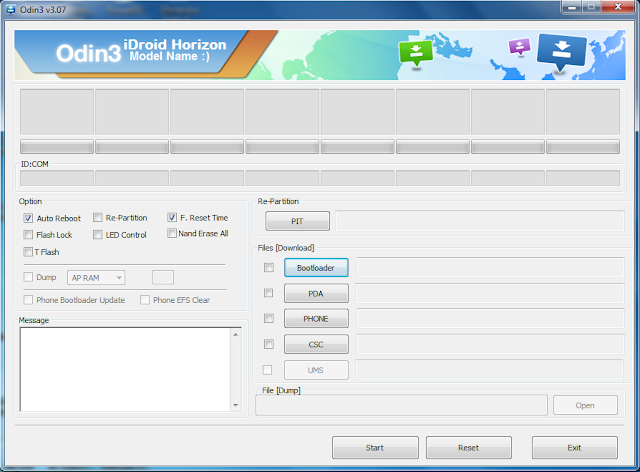
    Step 5 - Open ODIN on your computer. Connect your phone to your computer while your phone is in the Download Mode.

    Odin

    Step 6 - If your phone is connected successfully, one of the ID:COM boxes will turn yellow with the COM port number. This step might take some time.

    Step 7 - Now select the files that you have to flash/install on your phone. These files are to be found from the extracted files in Step 1.
    • Click on ‘PDA’ and select file with ‘CODE’ in its name.
    • Click on ‘Phone’ and select file with ‘MODEM’ in its name. Ignore this step if there is no such file.
    • Click on ‘CSC’ and select file with CSC’ in its name. Ignore this step if there is no such file.
    • Click on ‘PIT’ and select the .pit file. Ignore this step if there is no such file.
    Step 8 - In ODIN, check the Auto Reboot and F. Reset Time options. As for the Re-Partition option, check it ONLY if you selected a .PIT file in the above step.

    Step 9 - Now click on the Start button in ODIN. Installation process will start and would take a few minutes to complete.

    Step 10 - After the installation is completed, your phone will restart. After you see the home screen, unplug your phone from the computer.

    That’s it. Your Samsung Galaxy S6 has now been updated to Android 5.1.1 build UVU2COF6 software update. Go to Settings > About phone to verify what build have you installed.

    Hit +1 or Like on Facebook to thank us!

    What are your thoughts about the Android 5.1.1 update for the Samsung Galaxy S6 and S6 Edge? Please leave a comment!
    Read More

    June 17, 2015

    // // 1 comment

    [June 2015 Update] CyanogenMod 12.1 on Galaxy S4 Mini Lollipop ROM

    The days keep passing and found the new version of CyanogenMod 12.1 for key devices, although in fact there are already many Android devices compatible with CM12.1 Everyone has looked for ways to upgrade your device to the latest Android 5.1.1 Lollipop and since many do not receive the official update choose to seek a custom ROM and what better to use the more famous [CM12.1 cm-12.1-20150616-NIGHTLY-serrano3gxx.zip] highlighting its simplicity, its customization options and based on the latest Android Lollipop .

    CyanogenMod 12.1 on Galaxy S4 Mini

    CyanogenMod 12.1  Android 5.1.1 on Galaxy S4 Mini Lollipop

    This version is the first that has been ported or developed directly for the Samsung Galaxy S4 Mini (3G) and it is now possible to test it in our devices, but also run directly to install because although most of the features are operating normally have errors that are considered important so you may not be able to take advantage of this rom for daily use.
    NOTE : The bugs that are currently in this version of Lollipop hand CyanogenMod for Samsung Galaxy S4 Mini have not yet been published so know that things go wrong , but as we know work perfectly.
    You can update Galaxy S4 Mini to Android 5.1.1 CyanogenMod 12.1 Lollipop custom firmware using the tutorial below. This is not an official release by Samsung, but just a custom ROM which would require a custom recovery like ClockworkMod in order to flash the ROM zip and Google Apps zip files on your phone. Your Galaxy S4 Mini should be rooted and have a custom recovery (ClockworkMod recovery / TWRP recovery) installed.
    NOTE : This is the LATEST Update of CyanogenMod 12.1 (cm-12.1-20150616-NIGHTLY-serrano3gxx.zip)  Nightly ROM released on 16 June 2015.
    Disclaimer: All the custom ROMs and firmwares, official software updates, tools, mods or anything mentioned in the tutorial belong to their respective owners/developers. We (iDroid Horizon) or the developers are not to be held responsible if you damage or brick your device. We don’t have you on gun point to try out this tutorial.

    There are tons of useful articles and how-to guides on iDroid Horizon for the Samsung Galaxy S4 Mini I9190, but we think you might be interested in the following posts:
    Like this CyanogenMod 12.1 based on the latest Android 5.1.1? We love it too and we know you are looking forward to install it on your phone now. Now please read below for important tips on how to make sure your installation goes smooth and you do not end up with any problems.

    Samsung Galaxy S4 Mini Drivers :

    You will need to connect your Android phone with the computer. For that, please make sure you have installed the USB drivers for Samsung Galaxy Note 2 properly. If not, you can download the latest official drivers from our Android USB Drivers section here:

    Backup and some important tips :

    Done with USB Driver? Good. Now here we go for some work that you must do before installing this firmware. Please follow the important points that you need to take care of, as we don’t want anyone losing their personal data or apps:

    Backup your all important data and apps because during any installation of a new custom ROM or Official Firmware , your device will be wiped and cleaned with new operating system. Make a backup for just in case, you never know when anything might go wrong. Read below for some important tips on how to backup Android data in a easy process:
    Samsung user can also backup data by using Official Sumsang Kies. If you backup data manually, you will get more options for what to choose from. You can also move your data to other Android devices from different manufacturers, i.e moving Samsung Galaxy S5 backup data to Google Nexus 10.

    If you already have a custom recovery (ClockworkMod, TWRP etc.) installed on your phone, we strongly recommend a backup using that as it creates a complete image of your existing phone set up.

    Few more important things that you must remember before installing any custom ROMs or Official Firmwares:

    • You might face some problems in connecting your Android device to the computer. How to fix? You need to enable USB debugging mode.
    •  Make sure your Android device is charged up to 80-85% battery level. Why? Because, if your phone goes off suddenly while installing a custom ROM, flashing an official firmware update or installing mods etc. — your phone might get bricked or go dead permanently. No one wants that, right?
    • Most of the tutorials and how-to guides on iDroid Horizon are for factory unlocked Android devices. We recommend NOT to try our guides if your device is locked to a carrier, unless we have specified the device model or carrier name.
    If you find the above tips are helpful for you, please consider giving us a +1 or Like on our Facebook Fan Page to thank us!

    All set and ready? Good. Now, let’s proceed with the tutorial below and update Galaxy S4 Mini I9190 to CyanogenMod 12.1 Lollipop custom firmware.

    How to Install CyanogenMod 12.1 on Galaxy S4 Mini :

    We have put together a detailed step-by-step instructions guide on how to install CyanogenMod 12.1 Lollipop custom firmware on Galaxy S4 Mini. If you are used to installing custom ROMs on your Galaxy S4 Mini, then this should not be any different for you.

    However, for beginners, you need to root your Samsung Galaxy Note 2 and install a custom recovery. Please Google that up if you are unsure and make sure you read the tutorial once before actually performing it on your device.

    To Remember:
    • This tutorial is only for installing CyanogenMod 12.1 on Samsung Galaxy S4 Mini. Please do not try on any other Galaxy S4 variants.
    • Your phone should be rooted and have ClockworkMod recovery installed from before.
    • This tutorial will wipe out all your data. Proceed at your own risk.
    • Perform a Dalvik Cache wipe before proceeding from the recovery mode.
    • Samsung KIES will NOT detect your phone after installing this ROM because it is a custom firmware.
    • Make sure you backup all your data in your phone before proceeding.

    Entire Step-By-Step procedure :

    Step 1 - Download CM 12.1 Android 5.1.1 Lollipop Custom firmware and Google Apps for Galaxy S4 Mini to your computer.

    CyanogenMod 12.1 for Galaxy S4 Mini

    Step 2 - Connect and mount your Galaxy S4 Mini USB memory on your computer using the USB cable.

    Step 3 - Now copy/paste the downloaded Android 5.1.1 ROM zip file to your SD card. Make sure the file is in the SD card root (not in any folder).

    Step 4 - Then turn OFF your phone and disconnect from the USB cable.

    Step 5 - Now to get in the Recovery Mode. Switch ON the phone while pressing and holding Volume Up + Home + Power buttons together. You will get an exclamation mark now. Again, hold your Volume Up + Power buttons. You should now be in your Recovery Mode.

    Step 6 - Once you are in ClockworkMod Recovery, select perform a full data wipe by selecting “wipe data/factory reset”  Use the Power button to select everything while in the Recovery Mode.

    Step 7 - Then, perform a cache wipe by selecting “wipe cache partition” 

    Step 8 - Now this is optional, but it is recommended to perform a wipe of your dalvik cache as well. You will not get into boot loops or any other errors. From CWM recovery, go to ‘advanced’ and then select “wipe dalvik cache”.

    Step 9 - Then go back to the main recovery screen and select “install zip from SD card”.

    Step 10 - Now select “choose zip from sdcard”. Using your volume keys, navigate the CyanogenMod 12.1 ROM Zip file that you copied to your SD card and select it using the Power button. Confirm the installation on the next screen and the installation procedure should start now.

    Step 11 - After the installation completes, go to “+++++Go Back+++++” and reboot the phone by selecting “reboot system now
    Note: Repeat the same step of installation as in step 10 with Google Apps after installing CyanogenMod 12.1 Lollipop Custom Firmware.
    Your Galaxy S4 Mini I9190 will boot now and it might take about 5 minutes to boot on your first time. So, please wait.

    That’s it! Your Galaxy S4 Mini I9190 should now have CyanogenMod 12.1 Lollipop Custom ROM installed on your phone! Go to Settings > About phone to verify.

    Need Help?

    If you run into any problems during UPDATING Galaxy S4 Mini to CyanogenMod 12.1 Lollipop Custom ROM,  feel free to drop us a comment below and we will reply you back ASAP with the fix or the solution to your problem.
    Read More

    June 14, 2015

    // // 2 comments

    Install CyanogenMod 12.1 on YU Yureka AO5510 - Nightly ROM

    A nightly has appeared for the Yu Yureka (Code name: tomato), a more powerful handset that trades out the Snapdragon 410 for the 615. Its nightly comes in at a slightly larger 366MB.

    Since these devices ship with Cyanogen OS out of the box, flashing CyanogenMod won't provide as stark a difference as you would see replacing the likes of TouchWiz or Sense. But for tinkerers, that's hardly the point. Regardless, these nightly builds are uploaded daily, and stability may not come as part of the package.
    YU Yureka AO5510
    You can update YU Yureka AO5510 to Android 5.1 CyanogenMod 12.1 Lollipop custom firmware using the tutorial below. This is an official release by CyanogenMod, a custom ROM which would require a custom recovery like ClockworkMod in order to flash the ROM zip and Google Apps zip files on your phone. Also make sure, your warranty will be voided when you install this custom ROM.
    NOTE : This is the LATEST Update of CyanogenMod 12.1 (cm-12.1-20150613-NIGHTLY-tomato.zip) Nightly ROM released on 13 June 2015.
    As you continue reading below, we will guide you through how to backup data, some other important tips and the entire process of how to install CyanogenMod 12.1 Lollipop ROM on YU Yureka AO5510 with complete steps using CWM Recovery.

    Let’s get on with the tutorial now and make sure you backup your Phone as given below, because all the data will wiped during the installation process. The following tips are important as they will help the installation procedure to go smooth without any issues. Let’s begin with the tutorial below.

    Disclaimer: All the custom ROMs and firmwares, official software updates, tools, mods or anything mentioned in the tutorial belong to their respective owners/developers. We (iDroid Horizon) or the developers are not to be held responsible if you damage or brick your device. We don’t have you on gun point to try out this tutorial.

    Micromax YU Yureka AO5510 USB Drivers

    You will need to connect your Android Phone with the computer. For that, please make sure you have installed the USB drivers for YU Yureka properly. If not, you can download the latest official drivers from our Android USB Drivers section here:

    Backup and some important tips

    Backup your all important data and apps because during any installation of a new custom ROM or Official Firmware , your device will be wiped and cleaned with new operating system. Make a backup for just in case, you never know when anything might go wrong. Read below for some important tips on how to backup Android data in a easy process:

    Few more important things that you must remember before installing any custom ROMs or Official Firmwares:

    • You might face some problems in connecting your Android device to the computer. How to fix? You need to enable USB debugging mode. See here: How to Enable USB Debugging — for Gingerbread, Ice Cream Sandwich and KitKat.
    •  Make sure your Android device is charged up to 80-85% battery level. This might help you: How to Check Battery Percentage.  Why? Because, if your phone goes off suddenly while installing a custom ROM, flashing an official firmware update or installing mods etc. — your phone might get bricked or go dead permanently. No one wants that, right?
    • Most of the tutorials and how-to guides on iDroid Horizon are for factory unlocked Android phones and tablets. We recommend NOT to try our guides if your phone is locked to a carrier, unless we have specified the carrier name or device model. And also make sure you have an unlocked bootloader (except Samsung).
    If you find the above tips useful and they were helpful to you, please consider giving us a +1 or LIKE to thank us!

    All set and ready? Good. Now, let’s proceed with the tutorial below and update YU Yureka AO5510 to CyanogenMod 12.1 Lollipop custom firmware.

    How to Install CyanogenMod 12.1 Lollipop on YU Yureka AO5510 :

    We have put together a detailed step-by-step instructions guide on how to install CyanogenMod 12.1 Lollipop custom firmware on YU Yureka AO5510. If you are used to installing custom ROMs on your YU Yureka AO5510, then this should not be any different for you.

    However, for beginners, you need to root your YU Yureka and install a custom recovery. Please Google that up if you are unsure and make sure you read the tutorial once before actually performing it on your device.

    To Remember:
    • This Android 5.1 CyanogenMod 12.1 ROM tutorial is only for the YU Yureka AO5510 phone.
    • Your phone should have ClockworkMod recovery installed. Please make sure you have this recovery!
    • Make a Nandroid backup of your previous phone set up before proceeding – for just in case anything goes wrong.
    • This tutorial will wipe out all your existing data. Proceed at your own risk.

    Complete Step-By-Step Instructions:

    Step 1 - Download cm-12.1-20150613-NIGHTLY-tomato.zip  and Google Apps for YU Yureka AO5510 on your PC, if you haven’t already.

    Step 2 - Connect your YU Yureka AO5510 to your computer using the USB cable.

    Step 3 - Now copy/paste the downloaded cm-12.1-20150613-NIGHTLY-tomato.zip  and Google Apps zip files to your SD card. Make sure the files are in the SD card root (not in any folder).

    Step 4 - Please make sure Fastboot is configured and properly installed on your computer. How? See here: How to Set Up ADB and Fastboot with Android SDK.

    Step 5 - Then turn OFF your phone and disconnect from the USB cable.

    Step 6 - Get into the Fastboot/Bootloader Mode on your device. Turn ON the phone while pressing and holding the Volume Up + Power buttons till you see the Fastboot menu and START on top.

    Step 7 - Now to get in the Bootloader Mode. Turn ON the phone while pressing and holding the Volume Up + Volume Down and Power buttons.

    Step 8 - Follow the navigation instructions on the screen. Select BOOTLOADER and then go to RECOVERY.

    Step 9 - Once you are in ClockworkMod Recovery, select perform a full data wipe by selecting “wipe data/factory reset” . Use the Power button to select everything while in the Recovery Mode.

    Step 10 - Then, perform a cache wipe by selecting “wipe cache partition” as you can see in the image below.

    Step 11 - Now this is optional, but it is recommended to perform a wipe of your dalvik cache as well. You will not get into boot loops or any other errors. From CWM recovery, go to ‘advanced’ and then select “wipe dalvik cache”.

    Step 12 - Then go back to the main recovery screen and select “install zip from SD card”.

    Step 13 - Now select “choose zip from sdcard”. Using your volume keys, navigate to the cm-12.1-20150613-NIGHTLY-tomato.zip file that you copied to your SD card and select it using the Power button. Confirm the installation on the next screen and the installation procedure should start now.
    Google Apps: Repeat the Step 12 for the GApps zip file as well and install it on your phone.
    Step 14 - After the installation completes, go to “+++++Go Back+++++” and reboot the phone by selecting “reboot system now” from the recovery menu.

    Your YU Yureka AO5510 will boot now and it might take about 5 minutes to boot on your first time. So, please wait.

    That’s it! Your YU Yureka AO5510 should now have CyanogenMod 12.1 Lollipop custom ROM installed on your phone! Go to Settings > About phone to verify.

    Hit +1 or LIKE to thank us!

    Have fun playing with the new CyanogenMod 12.1 Lollipop. All the instructions are clearly given above, but if you have any issues, please let us know by commenting below.
    Read More

    June 13, 2015

    // // 6 comments

    Install CyanogenMod 12.1 on YU Yuphoria YU5010 - Nightly ROM

    The Yuphoria is a Cyanogen OS phone in India from Micromax subsidiary Yu. It's a mid-range device that competes with hardware along the lines of the Moto G, but that doesn't mean it's not a decent piece of tech to tinker with. That's especially the case now that the first CyanogenMod nightly has hit the web.

    The nightly for the Yuphoria (codename lettuce) provides CyanogenMod 12.1, which itself is based on Android 5.1. The ZIP archive comes in at 365MB.

    YU Yuphoria YU5010

    You can update YU Yuphoria YU5010 to Android 5.1 CyanogenMod 12.1 Lollipop custom firmware using the tutorial below. This is an official release by CyanogenMod, a custom ROM which would require a custom recovery like ClockworkMod in order to flash the ROM zip and Google Apps zip files on your phone. Also make sure, your warranty will be voided when you install this custom ROM.
    NOTE : This is the LATEST Update of CyanogenMod 12.1 (cm-12.1-20150613-NIGHTLY-lettuce.zip)  Nightly ROM released on 13 June 2015.
    As you continue reading below, we will guide you through how to backup data, some other important tips and the entire process of how to install CyanogenMod 12.1 Lollipop ROM on YU Yuphoria YU5010 with complete steps using CWM Recovery.

    Let’s get on with the tutorial now and make sure you backup your Phone as given below, because all the data will wiped during the installation process. The following tips are important as they will help the installation procedure to go smooth without any issues. Let’s begin with the tutorial below.

    Disclaimer: All the custom ROMs and firmwares, official software updates, tools, mods or anything mentioned in the tutorial belong to their respective owners/developers. We (iDroid Horizon) or the developers are not to be held responsible if you damage or brick your device. We don’t have you on gun point to try out this tutorial.

    Micromax YU Yuphoria YU5010 USB Drivers

    You will need to connect your Android phone with the computer. For that, please make sure you have installed the USB drivers for YU Yuphoria properly. If not, you can download the latest official drivers from our Android USB Drivers section here:

    Backup and some important tips

    Backup your all important data and apps because during any installation of a new custom ROM or Official Firmware , your device will be wiped and cleaned with new operating system. Make a backup for just in case, you never know when anything might go wrong. Read below for some important tips on how to backup Android data in a easy process:

    Few more important things that you must remember before installing any custom ROMs or Official Firmwares:

    • You might face some problems in connecting your Android device to the computer. How to fix? You need to enable USB debugging mode. See here: How to Enable USB Debugging — for Gingerbread, Ice Cream Sandwich and KitKat.
    •  Make sure your Android device is charged up to 80-85% battery level. This might help you: How to Check Battery Percentage.  Why? Because, if your phone goes off suddenly while installing a custom ROM, flashing an official firmware update or installing mods etc. — your phone might get bricked or go dead permanently. No one wants that, right?
    • Most of the tutorials and how-to guides on iDroid Horizon are for factory unlocked Android phones and tablets. We recommend NOT to try our guides if your phone is locked to a carrier, unless we have specified the carrier name or device model. And also make sure you have an unlocked bootloader (except Samsung).
    If you find the above tips useful and they were helpful to you, please consider giving us a +1 or LIKE to thank us!

    All set and ready? Good. Now, let’s proceed with the tutorial below and update YU Yuphoria YU5010 to CyanogenMod 12.1 Lollipop custom firmware.

    How to Install CyanogenMod 12.1 Lollipop on YU Yuphoria YU5010 :

    We have put together a detailed step-by-step instructions guide on how to install CyanogenMod 12.1 Lollipop custom firmware on YU Yuphoria YU5010. If you are used to installing custom ROMs on your YU Yuphoria YU5010, then this should not be any different for you.

    However, for beginners, you need to root your YU Yuphoria and install a custom recovery. Please Google that up if you are unsure and make sure you read the tutorial once before actually performing it on your device.

    To Remember:
    • This Android 5.1 CyanogenMod 12.1 ROM tutorial is only for the YU Yuphoria YU5010 phone.
    • Your phone should have ClockworkMod recovery installed. Please make sure you have this recovery!
    • Make a Nandroid backup of your previous phone set up before proceeding – for just in case anything goes wrong.
    • This tutorial will wipe out all your existing data. Proceed at your own risk.

    Complete Step-By-Step Instructions:

    Step 1 - Download cm-12.1-20150613-NIGHTLY-lettuce.zip and Google Apps for YU Yuphoria YU5010 on your PC, if you haven’t already.

    CM 12.1 for YU Yuphoria YU5010
    Click to Enlarge
    Step 2 - Connect your YU Yuphoria YU5010 to your computer using the USB cable.

    Step 3 - Now copy/paste the downloaded cm-12.1-20150613-NIGHTLY-lettuce.zip and Google Apps zip files to your SD card. Make sure the files are in the SD card root (not in any folder).

    Step 4 - Please make sure Fastboot is configured and properly installed on your computer. How? See here: How to Set Up ADB and Fastboot with Android SDK.

    Step 5 - Then turn OFF your phone and disconnect from the USB cable.

    Step 6 - Get into the Fastboot/Bootloader Mode on your device. Turn ON the phone while pressing and holding the Volume Up + Power buttons till you see the Fastboot menu and START on top.

    Step 7 - Now to get in the Bootloader Mode. Turn ON the phone while pressing and holding the Volume Up + Volume Down and Power buttons.

    Step 8 - Follow the navigation instructions on the screen. Select BOOTLOADER and then go to RECOVERY.

    Step 9 - Once you are in ClockworkMod Recovery, select perform a full data wipe by selecting “wipe data/factory reset” . Use the Power button to select everything while in the Recovery Mode.

    Step 10 - Then, perform a cache wipe by selecting “wipe cache partition” as you can see in the image below.

    Step 11 - Now this is optional, but it is recommended to perform a wipe of your dalvik cache as well. You will not get into boot loops or any other errors. From CWM recovery, go to ‘advanced’ and then select “wipe dalvik cache”.

    Step 12 - Then go back to the main recovery screen and select “install zip from SD card”.

    Step 13 - Now select “choose zip from sdcard”. Using your volume keys, navigate to the cm-12.1-20150613-NIGHTLY-lettuce.zip file that you copied to your SD card and select it using the Power button. Confirm the installation on the next screen and the installation procedure should start now.
    Google Apps: Repeat the Step 12 for the GApps zip file as well and install it on your phone.
    Step 14 - After the installation completes, go to “+++++Go Back+++++” and reboot the phone by selecting “reboot system now” from the recovery menu.

    Your YU Yuphoria YU5010 will boot now and it might take about 5 minutes to boot on your first time. So, please wait.

    That’s it! Your YU Yuphoria YU5010 should now have CyanogenMod 12.1 Lollipop custom ROM installed on your phone! Go to Settings > About phone to verify.

    Hit +1 or LIKE to thank us!

    Have fun playing with the new CyanogenMod 12.1 Lollipop. All the instructions are clearly given above, but if you have any issues, please let us know by commenting below.
    Read More

    June 12, 2015

    // // Leave a Comment

    Install Android 5.1.1 XenonHD on Nexus 7 (2013) Custom Firmware

    XenonHD finally makes it way towards Nexus 7 (2013). This ROM is based on latest Android 5.1.1 Lollipop. The developers doesn’t provide a features list so we don’t know what actually they integrated in this ROM but if we see some previous build from XenonHD then we can say its gonna be a pretty solid custom firmware for your device and you’ll enjoy this ROM too. If interested in Android 5.1.1 for other tablets, check out our new Custom ROMs section.

    This ARTICLE is from the XenonHD Team and was posted in accordance with the XenonHD rules !
    You can update Nexus 7 2013 to Android 5.1.1 XenonHD Lollipop custom firmware using the tutorial below. This is not an official release by ASUS, but just a custom ROM which would require a custom recovery like ClockworkMod in order to flash the ROM zip and Google Apps zip files on your tablet. Also make sure, your warranty will be voided when you install this custom ROM.
    XenonHD Lollipop ROM

    As you continue reading below, we will guide you through how to backup data, some other important tips and the entire process of how to install Android 5.1.1 XenonHD Lollipop ROM on Nexus 7 with complete steps using CWM Recovery. Let’s get on with the tutorial now and make sure you backup your tablet as given below, because all the data will wiped during the installation process. The following tips are important as they will help the installation procedure to go smooth without any issues. Let’s begin with the tutorial below.

    Disclaimer: All the custom ROMs and firmwares, official software updates, tools, mods or anything mentioned in the tutorial belong to their respective owners/developers. We (iDroid Horizon) or the developers are not to be held responsible if you damage or brick your device. We don’t have you on gun point to try out this tutorial.

    Android 5.1.1 XenonHD Lollipop ROM Details:

    This amazing XenonHD custom ROM comes with tons of new features and is based on Android 5.1.1 Lollipop. There are tons of useful articles and how-to guides on iDroid Horizon for the ASUS Nexus 7, but we think you might be interested in the following posts:
    Like this XenonHD ROM based on the latest Android 5.1.1? We love it too and we know you are looking forward to install it on your tablet now. We will be waiting for your feedback! Please read below for important tips on how to make sure your installation goes smooth and you do not end up with any problems.

    ASUS Nexus 7 USB Drivers

    You will need to connect your Android tablet with the computer. For that, please make sure you have installed the USB drivers for ASUS Nexus 7 properly. If not, you can download the latest official drivers from our Android USB Drivers section here:

    Backup and some important tips

    Backup your all important data and apps because during any installation of a new custom ROM or Official Firmware , your device will be wiped and cleaned with new operating system. Make a backup for just in case, you never know when anything might go wrong. Read below for some important tips on how to backup Android data in a easy process:

    Few more important things that you must remember before installing any custom ROMs or Official Firmwares:

    • You might face some problems in connecting your Android device to the computer. How to fix? You need to enable USB debugging mode. See here: How to Enable USB Debugging — for Gingerbread, Ice Cream Sandwich and KitKat.
    •  Make sure your Android device is charged up to 80-85% battery level. This might help you: How to Check Battery Percentage.  Why? Because, if your phone goes off suddenly while installing a custom ROM, flashing an official firmware update or installing mods etc. — your phone might get bricked or go dead permanently. No one wants that, right?
    • Most of the tutorials and how-to guides on iDroid Horizon are for factory unlocked Android phones and tablets. We recommend NOT to try our guides if your phone is locked to a carrier, unless we have specified the carrier name or device model. And also make sure you have an unlocked bootloader (except Samsung).
    If you find the above tips useful and they were helpful to you, please consider giving us a +1 or LIKE to thank us!

    All set and ready? Good. Now, let’s proceed with the tutorial below and update Nexus 7 to Android 5.1.1 XenonHD Lollipop custom firmware.

    How to Install Android 5.1.1 XenonHD Lollipop on ASUS Nexus 7 :

    We have put together a detailed step-by-step instructions guide on how to install Android 5.1.1 XenonHD Lollipop custom firmware on Nexus 7. If you are used to installing custom ROMs on your Nexus 7, then this should not be any different for you.

    However, for beginners, you need to root your ASUS Nexus 7 and install a custom recovery. Please Google that up if you are unsure and make sure you read the tutorial once before actually performing it on your device.

    To Remember:
    • This Android 5.1.1 XenonHD ROM tutorial is only for the Nexus 7 tablet.
    • Your tablet should have ClockworkMod recovery installed. Please make sure you have this recovery!
    • Make a Nandroid backup of your previous phone set up before proceeding – for just in case anything goes wrong.
    • This tutorial will wipe out all your existing data. Proceed at your own risk.

    Complete Step-By-Step Instructions:

    Step 1 - Download Android 5.1.1 XenonHD ROM and Google Apps for Nexus 7 (2013) on your PC, if you haven’t already.

    Step 2 - Connect your Nexus 7 (2013) to your computer using the USB cable.

    Step 3 - Now copy/paste the downloaded Android 5.1.1 ROM zip and Google Apps zip files to your SD card. Make sure the files are in the SD card root (not in any folder).

    Step 4 - Please make sure Fastboot is configured and properly installed on your computer. How? See here: How to Set Up ADB and Fastboot with Android SDK.

    Step 5 - Then turn OFF your phone and disconnect from the USB cable.

    Step 6 - Get into the Fastboot/Bootloader Mode on your device. Turn ON the tablet while pressing and holding the Volume Up + Power buttons till you see the Fastboot menu and START on top.

    Step 7 - Now to get in the Bootloader Mode. Turn ON the phone while pressing and holding the Volume Up + Volume Down and Power buttons.

    Step 8 - Follow the navigation instructions on the screen. Select BOOTLOADER and then go to RECOVERY.

    Step 9 - Once you are in ClockworkMod Recovery, select perform a full data wipe by selecting “wipe data/factory reset” . Use the Power button to select everything while in the Recovery Mode.

    Step 10 - Then, perform a cache wipe by selecting “wipe cache partition” as you can see in the image below.

    Step 11 - Now this is optional, but it is recommended to perform a wipe of your dalvik cache as well. You will not get into boot loops or any other errors. From CWM recovery, go to ‘advanced’ and then select “wipe dalvik cache”.

    Step 12 - Then go back to the main recovery screen and select “install zip from SD card”.

    Step 13 - Now select “choose zip from sdcard”. Using your volume keys, navigate to the Android 5.1.1 XenonHD ROM zip file that you copied to your SD card and select it using the Power button. Confirm the installation on the next screen and the installation procedure should start now.
    Google Apps: Repeat the Step 12 for the GApps zip file as well and install it on your phone.
    Step 14 - After the installation completes, go to “+++++Go Back+++++” and reboot the phone by selecting “reboot system now” from the recovery menu.

    Your Nexus 7 (2013) will boot now and it might take about 5 minutes to boot on your first time. So, please wait.

    That’s it! Your Nexus 7 (2013) should now have Android 5.1.1 XenonHD Lollipop custom ROM installed on your phone! Go to Settings > About phone to verify.

    Hit +1 or LIKE to thank us!

    Have fun playing with the new Android 5.1.1 Lollipop. All the instructions are clearly given above, but if you have any issues, please let us know.  
    Read More

    June 05, 2015

    // // Leave a Comment

    Update Galaxy S6 G920F to XXU1AOCV Android 5.0.2 Lollipop Official Firmware

    Samsung Galaxy S6 G920F receives new XXU1AOCV Android 5.0.2 Lollipop Official Firmware update on 28 March 2015. This update is being pushed only to Poland region through OTA (over-the-air) update system. If you want to get this latest firmware on your Galaxy S6 G920F, then we have a complete guide on how to install XXU1AOCV Android 5.0.2 Lollipop on Galaxy S6 G920F device manually with Odin.

    Please keep in mind that this is an Official Firmware, not a modified custom ROM. You can easily install XXU1AOCV Android 5.0.2 Lollipop on Galaxy S6 G920F using our tutorial given below. I recommend you to read this article once before actually performing it on your device.

    Image Credit : www.tomsguide.com
    As you continue reading below, we will provide you all the necessary tips like How to Backup Android Devices before installing any official firmwares or custom roms and many more. We will install this official firmware by using ODIN which is the safe method to manually install a new firmware update on your phone.
    Remember! If the flashing process is interrupted (e.g. with KIES) your phone might be very difficult to revive. So I recommend you to update your Android device manually using our tutorial below. Firmwares provided by iDroid Horizon are not modified, provided ‘as is’ from Samsung/Google servers.
    Disclaimer: All the custom ROMs and firmwares, official software updates, tools, mods or anything mentioned in the tutorial belong to their respective owners/developers. We (iDroid Horizon) or the developers are not to be held responsible if you damage or brick your device. We don’t have you on gun point to try out this tutorial

    Details about XXU1AOCV Android 5.0.2 Lollipop Firmware:

    Model  : SM-G920F
    Model name : GALAXY S6
    Country : Poland (Play)
    Version :  Android 5.0.2
    Changelist : 4497415
    Build date : Sat, 28 Mar 2015 10:51:21 +0000
    Product code : PRT
    PDA : G920FXXU1AOCV
    CSC  : G920FPRT1AOCN

    There are tons of useful articles and how-to guides on iDroid Horizon for the Samsung Galaxy S6 G920F, but we think you might be interested in the following posts:

    Android USB Driver for Galaxy S6 G920F

    You must have USB Driver installed in your Computer to connect your Android Device. Please make sure you have installed it before flashing any ROMs or Firmware. If you don't have USB Driver from before, you can download the latest  official USB Driver from our Android USB Driver Section here:

    Backup and some important tips

    Backup your all important data and apps because during any installation of a new custom ROM or Official Firmware , your device will be wiped and cleaned with new operating system. Make a backup for just in case, you never know when anything might go wrong. Read below for some important tips on how to backup Android data in a easy process:
    Samsung user can also backup data by using Official Sumsang Kies. If you backup data manually, you will get more options for what to choose from. You can also move your data to other Android devices from different manufacturers, i.e moving Samsung Galaxy S6 backup data to Google Nexus 10. If you already have a custom recovery (ClockworkMod, TWRP etc.) installed on your phone, we strongly recommend a backup using that as it creates a complete image of your existing phone set up.

    Few more important things that you must remember before installing any custom ROMs or Official Firmwares:

    • You might face some problems in connecting your Android device to the computer. How to fix? You need to enable USB debugging mode. See here: How to Enable USB Debugging — for Gingerbread, Ice Cream Sandwich and KitKat.
    •  Make sure your Android device is charged up to 80-85% battery level. This might help you: How to Check Battery Percentage.  Why? Because, if your phone goes off suddenly while installing a custom ROM, flashing an official firmware update or installing mods etc. — your phone might get bricked or go dead permanently. No one wants that, right?
    • Most of the tutorials and how-to guides on iDroid Horizon are for factory unlocked Android devices. We recommend NOT to try our guides if your device is locked to a carrier, unless we have specified the device model or carrier name.
    If you find the above tips are helpful for you, please consider giving us a +1 or Like on our Facebook Fan Page to thank us!

    All set and ready? Good. You can now proceed to the tutorial below and update Galaxy S6 G920F to XXU1AOCV Android 5.0.2 Lollipop official stock firmware.

    How to Install XXU1AOCV Android 5.0.2 Lollipop on Galaxy S6 G920F

    We have put together all detailed step-by-step  guides on how to update Samsung Galaxy S6 G920F to XXU1AOCV Android 5.0.2 Lollipop. If you are used to installing official updates through ODIN on Samsung Galaxy devices, then this should not be any different for you. Please read every line carefully and make sure you read the entire tutorial once before actually performing it on your phone.

    To Remember:
    1. This tutorial for installing XXU1AOCV Android 5.0.2 is only for Samsung Galaxy S6 G920F. Please don’t try this with other Android device.
    2. This is an official Samsung firmware, not a custom ROM or a modified firmware.
    3. Make sure you backup all your data in your phone before proceeding.
      Rooting Warning: This is an official Android 5.0.2 build XXU1AOCV update for Galaxy S6 G920F, which means you will lose root after installing this update. You will again have to root Galaxy S6 to gain full system access and be able to install root apps again. We will post an article soon on How to Root Galaxy S6 G920F Official Firmware. So stay tuned with us.

      Entire Step-By-Step procedure:

      Step 1 - Download Android 5.0.2 T805XXU1BOCC for Galaxy S6 G920F to your computer and extract the zip file.

      Step 2 - Download ODIN v3.07 which will help you to install Android 5.0.2 on Samsung Galaxy S6 G920F.

      Step 3 - Switch OFF your phone. Now go to Download Mode. How? Press and hold the Volume Down + Home buttons together, and then press the Power button till you see the construction Android robot and a triangle. Press Power again to confirm to enter into Download Mode.

      Step 4 - Make sure you have your Galaxy S6 G920F USB drivers installed on your computer.

      Step 5 - Open ODIN on your computer. Connect your phone to your computer while your phone is in the Download Mode.

      Odin

      Step 6 - If your phone is connected successfully, one of the ID:COM boxes will turn yellow with the COM port number. This step might take some time.

      Step 7 - Now select the files that you have to flash/install on your phone. These files are to be found from the extracted files in Step 1.
      • Click on ‘PDA’ and select file with ‘CODE’ in its name.
      • Click on ‘Phone’ and select file with ‘MODEM’ in its name. Ignore this step if there is no such file.
      • Click on ‘CSC’ and select file with CSC’ in its name. Ignore this step if there is no such file.
      • Click on ‘PIT’ and select the .pit file. Ignore this step if there is no such file.
      Step 8 - In ODIN, check the Auto Reboot and F. Reset Time options. As for the Re-Partition option, check it ONLY if you selected a .PIT file in the above step.

      Step 9 - Now click on the Start button in ODIN. Installation process will start and would take a few minutes to complete.

      Step 10 - After the installation is completed, your phone will restart. After you see the home screen, unplug your phone from the computer.

      That’s it. Your Samsung Galaxy S6 has now been updated to Android 5.0.2 build XXU1AOCV software update. Go to Settings > About phone to verify what build have you installed.

      Hit +1 or Like on Facebook to thank us!

      If you run into any problems, feel free to drop us a comment below and we will reply you back ASAP with the fix or the solution to your problem.
      Read More

      June 03, 2015

      // // 4 comments

      Update Galaxy Core I8262 to Cosmic ROM Android 5.0 Lollipop [CM Based]

      Cosmic Rom Lollipop Final Edition for Galaxy Core I8262 is now available to download . It is a Great Mixture of Lollipop Framework on Jellybean Platform.  XDA Developers has fully delivered the Android 5.0 Themed ROM to Cosmic ROM Lollipop Final Edition . There is not a single Lollipop themed ROM for any Samsung Jelly Bean devices.  So XDA Developers has ported it from various CyanogenMod 11 and CyanogenMod 12 themes and from Some Xposed themed.  If interested in Android 5.0 for other phones, check out our new Custom ROMs section.

      Cosmic ROM Android 5.0 Lollipop

      You can update Galaxy Core I8262 to Cosmic ROM Android 5.0 Lollipop custom firmware using the tutorial below. This is not an official release by Samsung, but just a custom ROM which would require a custom recovery like ClockworkMod in order to flash the ROM zip files on your phone.

      Disclaimer: All the official firmwares, custom ROMs, software updates, themes, mods, tools, apps, or anything provided in our blog belongs to their respective developers. Most of the custom ROMs we are providing here are from XDA Developers. We (iDroid Horizon) or the respective developers are not responsible if any of our tutorial damage or brick your device. However if you follow our instruction properly, we hope it would not bring you in trouble. If you face any problems with our tutorials, please comment below. We are sure that we can bring your device in original position.

      There are tons of useful articles and how-to guides on iDroid Horizon for the Samsung Galaxy Core I8262, but we think you might be interested in the following posts:

      List of Features in Cosmic ROM Android 5.0 Lollipop Update :

      • Exact Replica of Android Lollipop Framework.
      • Android Lollipop animations added to framework [ Like list ,Check box, Radio button,etc..]
      • Optimized Framework with 200 DPI as default
      • New Status bar L Theme
      • Moto G styled Expanded Toggles
      • Profile Picture and Name in Status bar Toggles view.
      • Lollipop themed Apps.
      • Lollipop Easter Egg [ Improved one - now set difficulty levels... ]
      • Phone and Others apps are Optimized for 200 DPI.
      • Lollipop wallpapers added to stock wallpaper app.
      • Bug fixes like Dual SIM Wallpaper, Gallery Slideshow FC fixed and many others..
      • Many more to feel the Lollipop awesomeness....
      Like this Cosmic ROM Android 5.0 Lollipop based on the latest Android 5.0? We love it too and we know you are looking forward to install it on your phone now. Now please read below for important tips on how to make sure your installation goes smooth and you do not end up with any problems.

      Galaxy Core I8262 USB Drivers :

      You will need to connect your Android phone with the computer. For that, please make sure you have installed the USB drivers for Galaxy Core I8262 properly. If not, you can download the latest official drivers from our Android USB Drivers section here:

      Backup and some important tips

      Backup your all important data and apps because during any installation of a new custom ROM or Official Firmware , your device will be wiped and cleaned with new operating system. Make a backup for just in case, you never know when anything might go wrong. Read below for some important tips on how to backup Android data in a easy process:

      Few more important things that you must remember before installing any custom ROMs or Official Firmwares:

      • You might face some problems in connecting your Android device to the computer. How to fix? You need to enable USB debugging mode. See here: How to Enable USB Debugging — for Gingerbread, Ice Cream Sandwich and KitKat.
      •  Make sure your Android device is charged up to 80-85% battery level. This might help you: How to Check Battery Percentage.  Why? Because, if your phone goes off suddenly while installing a custom ROM, flashing an official firmware update or installing mods etc. — your phone might get bricked or go dead permanently. No one wants that, right?
      • Most of the tutorials and how-to guides on iDroid Horizon are for factory unlocked Android phones and tablets. We recommend NOT to try our guides if your phone is locked to a carrier, unless we have specified the carrier name or device model. And also make sure you have an unlocked bootloader (except Samsung).
      If you find the above tips useful and they were helpful to you, please consider giving us a +1 or LIKE to thank us!

      All set and ready? Good. Now, let’s proceed with the tutorial below and update Galaxy Core I8262 to Cosmic ROM Android 5.0 Lollipop custom firmware.

      How to Install Cosmic ROM Android 5.0 Lollipop Custom Firmware

      We have put together a detailed step-by-step instructions guide on how to install Cosmic ROM Android 5.0 Lollipop custom firmware on Galaxy Core I8262. If you are used to installing custom ROMs on your Galaxy Core I8262, then this should not be any different for you.

      However, for beginners, you need to root your Galaxy Core I8262 and install a custom recovery. Please Google that up if you are unsure and make sure you read the tutorial once before actually performing it on your device.

      Please make sure your phone fulfills all the requirements and you read the entire tutorial once before actually performing it on your device.
      Try this on your own risk. We are not responsible if you mess up with your Galaxy Core I8262.
      To Remember:
      • This Cosmic ROM Android 5.0 Lollipop Firmware tutorial is only for Galaxy Core I8262 and I am not sure if it will work on the other variants of the Galaxy Core on other carriers.
      • Make sure your phone is rooted and has a custom recovery like ClockworkMod installed.
      • Make a Nandroid backup of your previous phone set up before proceeding – for just in case anything goes wrong.
      • Install the Google Apps package if you want the usual Google apps (Gmail, Maps, Play Store, Calendar etc.) on your phone.
      NOTE: Installing Cosmic ROM Android 5.0 Lollipop Custom ROM will WIPE / DELETE / ERASE everything from your phone if your bootloader is not already unlocked. Please make sure you have a backup of all the data. Read: How to Backup Android Apps and Other Data.

      Complete Step-By-Step Instructions:

      Step 1 - Download Cosmic Lollipop Final Edition ROM for Galaxy Core I8262 on your PC, if you haven’t already.
      Note : Your Galaxy Core I8262 should be on Cosmic ROM Version 1.0 before flashing this ROM.
      Step 2 - Connect your Galaxy Core I8262 to your computer using the USB cable.

      Step 3 - Please make sure Fastboot is configured and properly installed on your computer. How? See here: How to Set Up ADB and Fastboot with Android SDK.

      Step 4 - Then turn OFF your phone and disconnect from the USB cable.

      Step 5 - Get into the Fastboot/Bootloader Mode on your device. Turn ON the tablet while pressing and holding the Volume Up + Power buttons till you see the Fastboot menu and START on top.

      Step 6 - Now to get in the Bootloader Mode. Turn ON the phone while pressing and holding the Volume Up + Volume Down and Power buttons.

      Step 7 - Follow the navigation instructions on the screen. Select BOOTLOADER and then go to RECOVERY.

      Step 8 - Once you are in ClockworkMod Recovery, select perform a full data wipe by selecting “wipe data/factory reset” . Use the Power button to select everything while in the Recovery Mode.

      Step 9 - Then, perform a cache wipe by selecting “wipe cache partition” as you can see in the image below.

      Step 10 - Now this is optional, but it is recommended to perform a wipe of your dalvik cache as well. You will not get into boot loops or any other errors. From CWM recovery, go to ‘advanced’ and then select “wipe dalvik cache”.

      Step 11 - Then go back to the main recovery screen and select “install zip from SD card”.

      Step 12 - Now select “choose zip from sdcard”. Using your volume keys, navigate to the Cosmic ROM Android 5.0 zip file that you copied to your SD card and select it using the Power button. Confirm the installation on the next screen and the installation procedure should start now.
      Optional : If you want to remove GApps from the ROM, flash GApps remover zip after installing lollipop edition.
      Step 12 - After the installation completes, go to “+++++Go Back+++++” and reboot the phone by selecting “reboot system now” from the recovery menu as show below.

      Your Galaxy Core I8262 will boot now and it might take about 5 minutes to boot on your first time. So, please wait.

      That’s it! Your Galaxy Core I8262 should now have Cosmic ROM Android 5.0 Lollipop custom ROM installed on your phone! Go to Settings > About phone to verify.
      If You want tinted Status bar automatically in all Apps :
      • Install XPOSED framework from Settings > Xposed settings 
      • Then go to Modules in Xposed > tick Tinted Status bar.
      • Then go back to settings > cosmic mods > Statusbar Tint (Xposed module)
      • Press "MENU" button and click on settings.
      • Now there are many Check Boxes : 1 (allow 3rd party) ,3 (Animate), 4 ,5,7 [ These options should be checked ]
      • Select option Default tints
      • 1st option should be completely transparent > opacity 0 and apply
      • 3rd option should be White and apply.
      • Now restart device .and enjoy.
      Hit +1 or LIKE to thank us!

      Have fun playing with the new Cosmic ROM Android 5.0 Lollipop. All the instructions are clearly given above, but if you have any issues, please let us know.  
      Read More

      June 01, 2015

      // // Leave a Comment

      Install CyanogenMod 12.1 on Galaxy S4 Mini I9195 [Nightly ROM]

      Samsung Galaxy S4 Mini I9195 users can now download and install CyanogenMod 12.1 with Android 5.1 Lollipop. This ROM is an unofficial release of the CM12.1 code base, but includes all the CM features so far added into the Lollipop branch. We don’t think we need to remind you that this is still an early build and bugs could eat up your phone — but for those who want to try out, please do! If interested in Android 5.1 for other phones, check out our new Custom ROMs section.

      CyanogenMod 12.1 on Galaxy S4 Mini I9195

      You can update Galaxy S4 Mini I9195 to Android 5.1 CyanogenMod 12.1 Lollipop custom firmware using the tutorial below. This is not an official release by Samsung, but just a custom ROM which would require a custom recovery like ClockworkMod in order to flash the ROM zip and Google Apps zip files on your phone. Your Galaxy S4 Mini I9195 should be rooted and have a custom recovery (ClockworkMod recovery / TWRP recovery) installed.

      Disclaimer: All the official firmwares, custom ROMs, software updates, themes, mods, tools, apps, or anything provided in our blog belongs to their respective developers. Most of the custom ROMs we are providing here are from XDA Developers. We (iDroid Horizon) or the respective developers are not responsible if any of our tutorial damage or brick your device. However if you follow our instruction properly, we hope it would not bring you in trouble. If you face any problems with our tutorials, please comment below. We are sure that we can bring your device in original position.

      There are tons of useful articles and how-to guides on iDroid Horizon for the Samsung Galaxy S4 Mini I9195, but we think you might be interested in the following posts:
      Like this CyanogenMod 12.1 based on the latest Android 5.1? We love it too and we know you are looking forward to install it on your phone now. Now please read below for important tips on how to make sure your installation goes smooth and you do not end up with any problems.

      Samsung Galaxy S4 Mini I9195 Drivers :

      You will need to connect your Android phone with the computer. For that, please make sure you have installed the USB drivers for Samsung Galaxy Note 2 properly. If not, you can download the latest official drivers from our Android USB Drivers section here:

      Backup and some important tips :

      Done with USB Driver? Good. Now here we go for some work that you must do before installing this firmware. Please follow the important points that you need to take care of, as we don’t want anyone losing their personal data or apps:

      Backup your all important data and apps because during any installation of a new custom ROM or Official Firmware , your device will be wiped and cleaned with new operating system. Make a backup for just in case, you never know when anything might go wrong. Read below for some important tips on how to backup Android data in a easy process:
      Samsung user can also backup data by using Official Sumsang Kies. If you backup data manually, you will get more options for what to choose from. You can also move your data to other Android devices from different manufacturers, i.e moving Samsung Galaxy S5 backup data to Google Nexus 10. If you already have a custom recovery (ClockworkMod, TWRP etc.) installed on your phone, we strongly recommend a backup using that as it creates a complete image of your existing phone set up.

      Few more important things that you must remember before installing any custom ROMs or Official Firmwares:

      • You might face some problems in connecting your Android device to the computer. How to fix? You need to enable USB debugging mode. See here: How to Enable USB Debugging — for Gingerbread, Ice Cream Sandwich and KitKat.
      •  Make sure your Android device is charged up to 80-85% battery level. This might help you: How to Check Battery Percentage.  Why? Because, if your phone goes off suddenly while installing a custom ROM, flashing an official firmware update or installing mods etc. — your phone might get bricked or go dead permanently. No one wants that, right?
      • Most of the tutorials and how-to guides on iDroid Horizon are for factory unlocked Android devices. We recommend NOT to try our guides if your device is locked to a carrier, unless we have specified the device model or carrier name.
      If you find the above tips are helpful for you, please consider giving us a +1 or Like on our Facebook Fan Page to thank us!

      All set and ready? Good. Now, let’s proceed with the tutorial below and update Galaxy S4 Mini I9195 to CyanogenMod 12.1 Lollipop custom firmware.

      How to Install CyanogenMod 12.1 on Galaxy S4 Mini I9195 :

      We have put together a detailed step-by-step instructions guide on how to install CyanogenMod 12.1 Lollipop custom firmware on Galaxy S4 Mini. If you are used to installing custom ROMs on your Galaxy S4 Mini, then this should not be any different for you.

      However, for beginners, you need to root your Samsung Galaxy Note 2 and install a custom recovery. Please Google that up if you are unsure and make sure you read the tutorial once before actually performing it on your device.

      To Remember:
      • This tutorial is only for installing CyanogenMod 12.1 on Samsung Galaxy S4 Mini. Please do not try on any other Galaxy S4 variants.
      • Your phone should be rooted and have ClockworkMod recovery installed from before.
      • This tutorial will wipe out all your data. Proceed at your own risk.
      • Perform a Dalvik Cache wipe before proceeding from the recovery mode.
      • Samsung KIES will NOT detect your phone after installing this ROM because it is a custom firmware.
      • Make sure you backup all your data in your phone before proceeding.

      Entire Step-By-Step procedure :

      Step 1 - Download CM 12.1 Android 5.1 Lollipop Custom firmware and Google Apps for Galaxy S4 Mini to your computer.

      Step 2 - Connect and mount your Galaxy S4 Mini USB memory on your computer using the USB cable.

      Step 3 - Now copy/paste the downloaded Android 5.1 ROM zip file to your SD card. Make sure the file is in the SD card root (not in any folder).

      Step 4 - Then turn OFF your phone and disconnect from the USB cable.

      Step 5 - Now to get in the Recovery Mode. Switch ON the phone while pressing and holding Volume Up + Home + Power buttons together. You will get an exclamation mark now. Again, hold your Volume Up + Power buttons. You should now be in your Recovery Mode.

      Step 6 - Once you are in ClockworkMod Recovery, select perform a full data wipe by selecting “wipe data/factory reset”  Use the Power button to select everything while in the Recovery Mode.

      Step 7 - Then, perform a cache wipe by selecting “wipe cache partition” 

      Step 8 - Now this is optional, but it is recommended to perform a wipe of your dalvik cache as well. You will not get into boot loops or any other errors. From CWM recovery, go to ‘advanced’ and then select “wipe dalvik cache”.

      Step 9 - Then go back to the main recovery screen and select “install zip from SD card”.

      Step 10 - Now select “choose zip from sdcard”. Using your volume keys, navigate the CyanogenMod 12.1 ROM Zip file that you copied to your SD card and select it using the Power button. Confirm the installation on the next screen and the installation procedure should start now.

      Step 11 - After the installation completes, go to “+++++Go Back+++++” and reboot the phone by selecting “reboot system now
      Note: Repeat the same step of installation as in step 10 with Google Apps after installing CyanogenMod 12.1 Lollipop Custom Firmware.
      Your Galaxy S4 Mini I9195 will boot now and it might take about 5 minutes to boot on your first time. So, please wait.

      That’s it! Your Galaxy S4 Mini I9195 should now have CyanogenMod 12.1 Lollipop Custom ROM installed on your phone! Go to Settings > About phone to verify.

      Need Help?

      If you run into any problems during UPDATING Galaxy S4 Mini I9195 to CyanogenMod 12.1 Lollipop Custom ROM,  feel free to drop us a comment below and we will reply you back ASAP with the fix or the solution to your problem.
      Read More